Quick Answer: The difference between SSD and HDD is how they store data: an SSD (solid-state drive) uses flash memory chips with no moving parts, while an HDD (hard disk drive) uses spinning magnetic platters read by a mechanical arm. SSDs are dramatically faster, quieter, more durable, and more power-efficient; HDDs offer far more capacity per dollar. For most users in 2026, an SSD is the right primary drive, with HDDs reserved for cheap bulk storage.
Storage is the one upgrade that transforms how a computer feels. Swap a spinning hard drive for a solid-state drive and a five-year-old laptop boots in seconds instead of minutes. Yet both technologies still sell side by side, and the price gap keeps the older one alive. Understanding the difference between SSD and HDD helps you spend wisely — whether you are buying a laptop, building a PC, or adding backup storage.
This guide explains how each drive works, compares them on speed, durability, capacity, price, power, and lifespan, and gives clear buying advice for gamers, creators, students, and anyone just trying to make an old machine feel new again.
| Feature | SSD (Solid-State Drive) | HDD (Hard Disk Drive) |
|---|---|---|
| Storage technology | NAND flash memory chips, no moving parts | Spinning magnetic platters + mechanical read/write head |
| Typical speed | 500 MB/s (SATA) up to 7,000+ MB/s (NVMe) | 80–160 MB/s |
| Durability | Shock-resistant; no mechanical wear | Vulnerable to drops and mechanical failure |
| Noise & heat | Silent, runs cool | Audible spinning; generates more heat |
| Power use | Low — better laptop battery life | Higher — motor must spin constantly |
| Capacity per dollar | More expensive (best value up to ~4TB) | Much cheaper (drives up to 20TB+) |
| Best for | Operating system, apps, games | Bulk media libraries, backups, archives |
What Is an HDD?
A hard disk drive is the classic storage technology, dominant since the 1980s. Inside the sealed case, one or more rigid platters coated with magnetic material spin at 5,400 or 7,200 revolutions per minute. A mechanical arm with a read/write head floats nanometers above the surface, magnetizing tiny regions to record data and sensing them to read it back. It is an impressive feat of precision engineering — and inherently mechanical.
That mechanical nature defines both the strengths and weaknesses of the HDD. Because magnetic platters are cheap to manufacture at scale, HDDs deliver enormous capacities — 4TB, 8TB, even 20TB — at prices no SSD can touch. But every read requires the platter to rotate to the right spot and the head to travel to the right track, which caps speeds around 80–160 MB/s and adds milliseconds of latency. Moving parts also mean vulnerability: a sharp knock while the drive is spinning can crash the head into the platter and destroy data.
What Is an SSD?
A solid-state drive stores data in NAND flash memory — the same basic technology as a USB stick, scaled up enormously. With no platters, motors, or heads, data is accessed electronically, almost instantly. A basic SATA SSD reads at around 500 MB/s; a modern NVMe SSD connected over PCIe can exceed 7,000 MB/s, and the newest PCIe 5.0 models push past 14,000 MB/s.
The practical effect is transformative. Operating systems boot in 10–20 seconds, applications launch instantly, large files copy in moments, and games load levels without the long waits HDD users accept as normal. SSDs are also silent, generate little heat, shrug off bumps that would kill a hard drive, and sip power — a meaningful battery-life win in laptops. The trade-offs are cost per gigabyte and a finite number of write cycles per memory cell, though modern wear-leveling makes SSD endurance a non-issue for typical consumer use spanning many years.
Key Differences Between SSD and HDD
1. Speed: The Decisive Gap
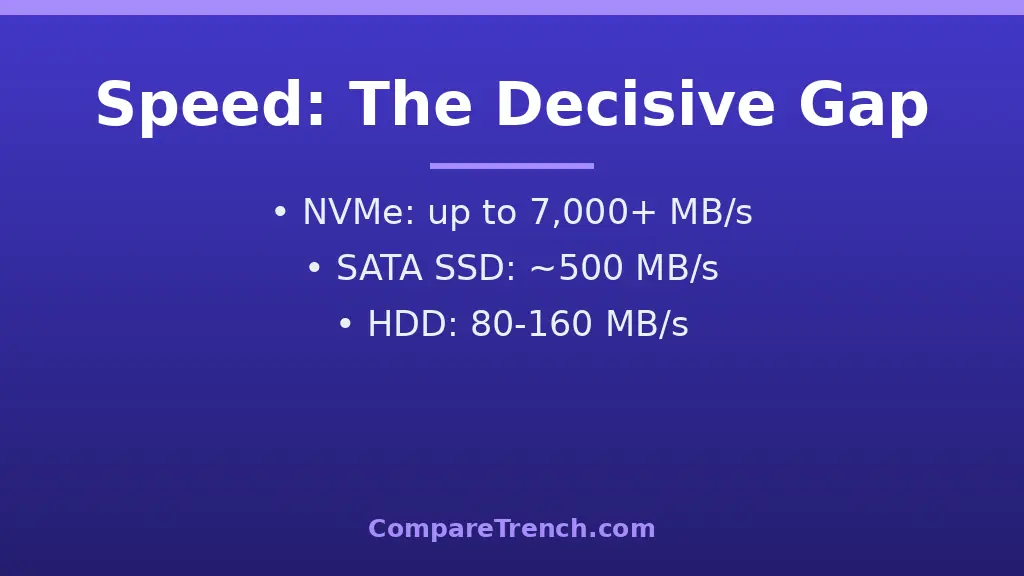
Speed is the single biggest difference between SSD and HDD, and it is not close. Even a budget SATA SSD is three to five times faster than a 7,200 RPM hard drive in sequential transfers, and the gap widens enormously for small random reads — the kind of access pattern operating systems use constantly. That is why an SSD feels 10x faster in daily use even when benchmark numbers suggest a smaller multiple. For NVMe drives, the advantage stretches to 40x or more over HDDs.
2. Durability and Reliability
SSDs win on physical robustness because there is nothing to break mechanically. Drop a running laptop with an HDD and you risk a head crash; drop one with an SSD and the drive barely notices. HDDs also wear through bearing and motor fatigue over years of spinning. SSDs instead wear through write cycles, but manufacturers rate consumer drives for hundreds of terabytes written — far beyond what most users will ever reach. In real-world failure statistics, SSDs and HDDs now fail at roughly comparable low annual rates, with SSDs holding the edge in mobile use.
3. Capacity and Price
This is the HDD’s last fortress. A 4TB hard drive routinely costs less than a 1TB quality SSD, and at 8TB+ the price gap becomes dramatic. For storing terabytes of video footage, photo archives, or game libraries you rarely touch, HDDs remain the rational choice. SSD prices fall every year, and 2TB SSDs are now genuinely affordable — but per gigabyte, spinning rust still wins by a wide margin.
4. Power, Noise, and Heat
An HDD must keep its platters spinning whenever the system is awake, drawing several watts and producing audible whirring plus vibration. An SSD draws a fraction of that at idle and stays silent. In laptops this translates directly into longer battery life and a cooler, quieter machine. In desktops and servers it means less heat to exhaust and lower electricity bills at scale — one reason data centers have shifted overwhelmingly to flash.
5. Lifespan and Data Recovery
Both drive types can last a decade with luck, but they fail differently. HDDs usually degrade gradually — clicking sounds, bad sectors, slowing reads — giving warning. SSDs tend to fail suddenly when the controller or flash gives out, though SMART monitoring still catches many cases early. One genuine HDD advantage: when a hard drive dies mechanically, specialist labs can often recover data from the platters; a dead SSD with failed flash is far harder and more expensive to recover. Either way, the lesson is identical — keep backups, because every drive dies eventually.
6. Form Factors and Interfaces
HDDs come in 3.5-inch (desktop) and 2.5-inch (laptop) sizes using the SATA interface. SSDs are more versatile: 2.5-inch SATA SSDs (drop-in HDD replacements), M.2 SATA sticks, and M.2 NVMe sticks that slot directly onto the motherboard. As SanDisk’s SSD vs HDD guide notes, NVMe drives are the standard for new builds, while 2.5-inch SATA SSDs remain the easiest upgrade path for older machines.
SSD vs HDD: Which Should You Buy?
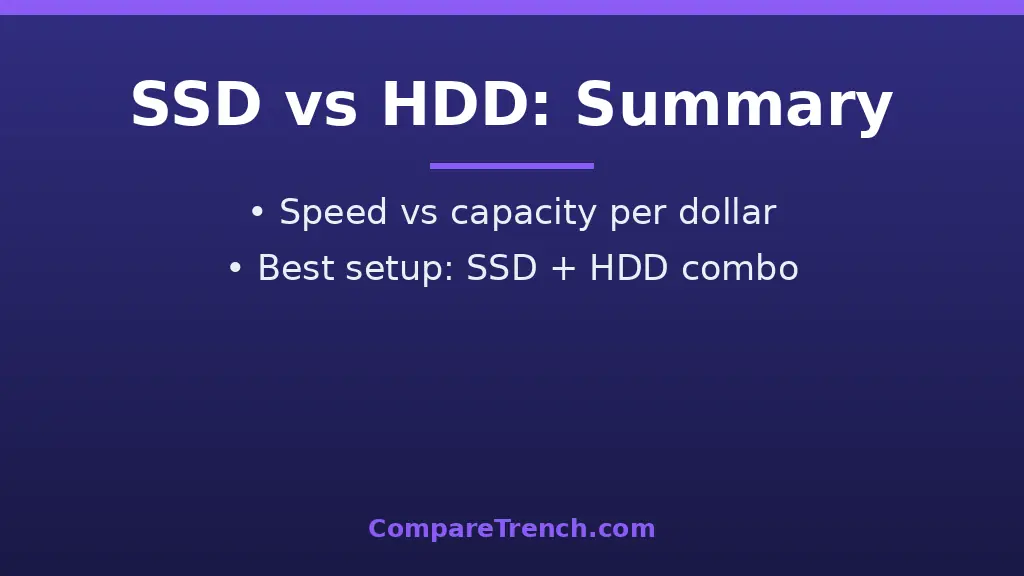
Buy an SSD as your main drive — almost always. For the operating system, applications, and active projects, an SSD is not a luxury; it is the baseline expectation for a usable computer in 2026. Even a modest SATA SSD makes an old laptop feel new. Gamers and creators should prioritize NVMe SSDs for fast level loads and smooth 4K video editing timelines.
Buy an HDD for bulk storage. If you need 4TB or more for media libraries, backups, surveillance footage, or archives, a hard drive gives you that capacity for the price of a much smaller SSD. The winning setup for desktops is a hybrid: a 1–2TB NVMe SSD for the system and daily work, plus a large HDD for everything else.
Upgrading an old PC? Cloning your system from HDD to a 2.5-inch SATA SSD is the single best-value upgrade in computing — often under the cost of a nice dinner, with results you feel every time you press the power button.
SSD vs HDD Lifespan and Reliability
Lifespan is where the difference between SSD and HDD becomes more than a speed story. An HDD wears out mechanically: bearings degrade, the actuator arm moves millions of times, and a single drop while the platters spin can cause a head crash that destroys data instantly. Most consumer hard drives are rated for three to five years of heavy use, and failure often arrives without warning, although clicking or grinding noises are a classic early sign. An SSD has no moving parts, so it survives shocks, vibration, and travel far better, which is why laptops switched to flash storage almost entirely.
SSDs wear differently. Each flash cell tolerates a finite number of write cycles, measured as TBW (terabytes written) or DWPD (drive writes per day). For typical home and office workloads, however, that limit is generous: a 1TB consumer SSD rated at 600 TBW would take decades to exhaust at normal daily writing rates. Modern wear-levelling spreads writes evenly across cells, and the drive’s SMART health report lets you monitor remaining life. In practice, an SSD usually outlasts the computer it is installed in, while an HDD used as a primary drive is more likely to fail first. For archival storage that sits powered off on a shelf, though, a hard drive still has a role, since flash cells can slowly lose charge over many unpowered years.
Frequently Asked Questions
Is SSD better than HDD for gaming?
Yes. Games installed on an SSD load levels far faster, stream open-world assets without stuttering, and install or update more quickly. An SSD will not increase your frame rate — that depends on the GPU and CPU — but it removes storage as a bottleneck everywhere else.
Do SSDs last longer than HDDs?
For typical consumer use, yes, effectively. SSDs have no mechanical parts to wear out, and their rated write endurance (often 600+ terabytes written for a 1TB drive) exceeds what most users write in a decade. HDDs can also last many years but are more vulnerable to shock, heat, and mechanical wear.
Can I replace my laptop’s HDD with an SSD?
In most cases, yes. If your laptop has a 2.5-inch SATA drive bay, a 2.5-inch SATA SSD is a direct swap; many newer laptops accept M.2 NVMe SSDs. Check your model’s manual for compatibility, clone your old drive or reinstall the OS, and you will get a dramatically faster machine.
Why are HDDs still sold if SSDs are better?
Price per gigabyte. HDDs store massive amounts of data far more cheaply, which matters for backups, media servers, surveillance systems, and data centers archiving petabytes. Where speed does not matter and capacity does, HDDs remain the economical choice.
What is the difference between SATA SSD and NVMe SSD?
Both are SSDs, but they use different interfaces. SATA SSDs top out around 550 MB/s due to the older SATA bus. NVMe SSDs connect via PCIe lanes directly to the CPU, reaching 3,500–14,000+ MB/s depending on the generation. NVMe is the better choice for new systems; SATA SSDs are mainly useful for upgrading older machines.
Conclusion
The difference between SSD and HDD comes down to physics: flash memory versus spinning magnetism. SSDs deliver overwhelming advantages in speed, durability, silence, and efficiency, making them the clear choice for operating systems, applications, and anything you use daily. HDDs counter with unbeatable cost per gigabyte, keeping them relevant for bulk storage, backups, and archives. The smart money in 2026 buys both — an SSD for speed where it counts, an HDD for capacity where it does not. For more technology comparisons, see our guides on the difference between AI and machine learning, the difference between machine learning and deep learning, the difference between iOS and Android, the difference between LCD and LED, and the difference between OLED and UHD.